


New article
Recently updated
Managing documents in the Mazlan Customer Portal

Who is this article for?
Administrators looking to manage the internal documents (e.g. policies & procedures) Mazlan has access to.
Administrator permissions required.
The Mazlan Customer Portal allows you to upload, manage, and organise documents that your Mazlan agents can search and reference.
Accessing the Customer Portal
To access the Customer Portal:
- Log into Mazlan Home.
- Navigate to the Admin Console.
- Navigate to Settings.
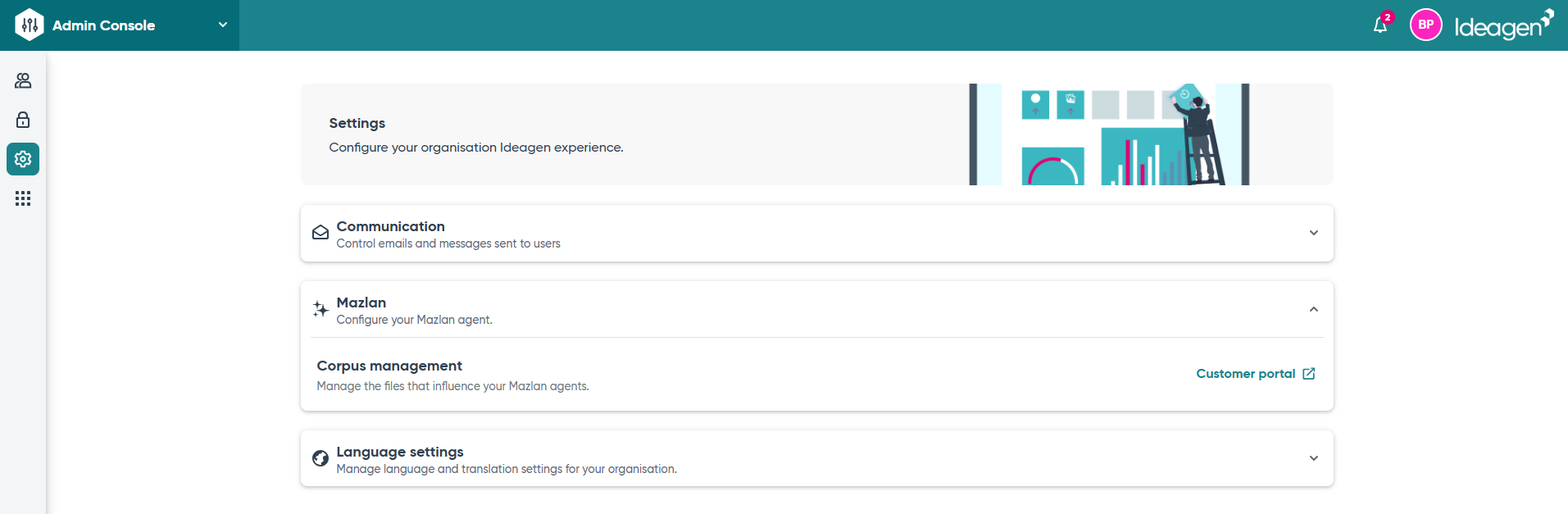
Under Mazlan, follow the link to the Customer Portal.
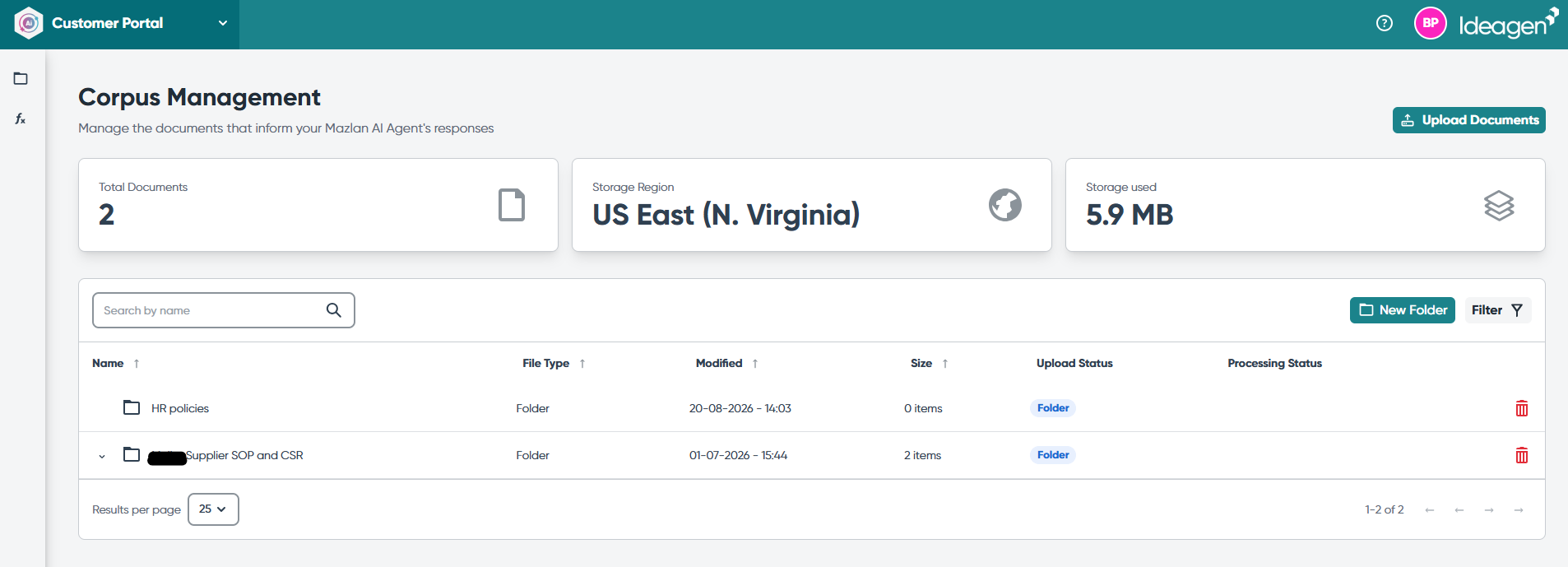
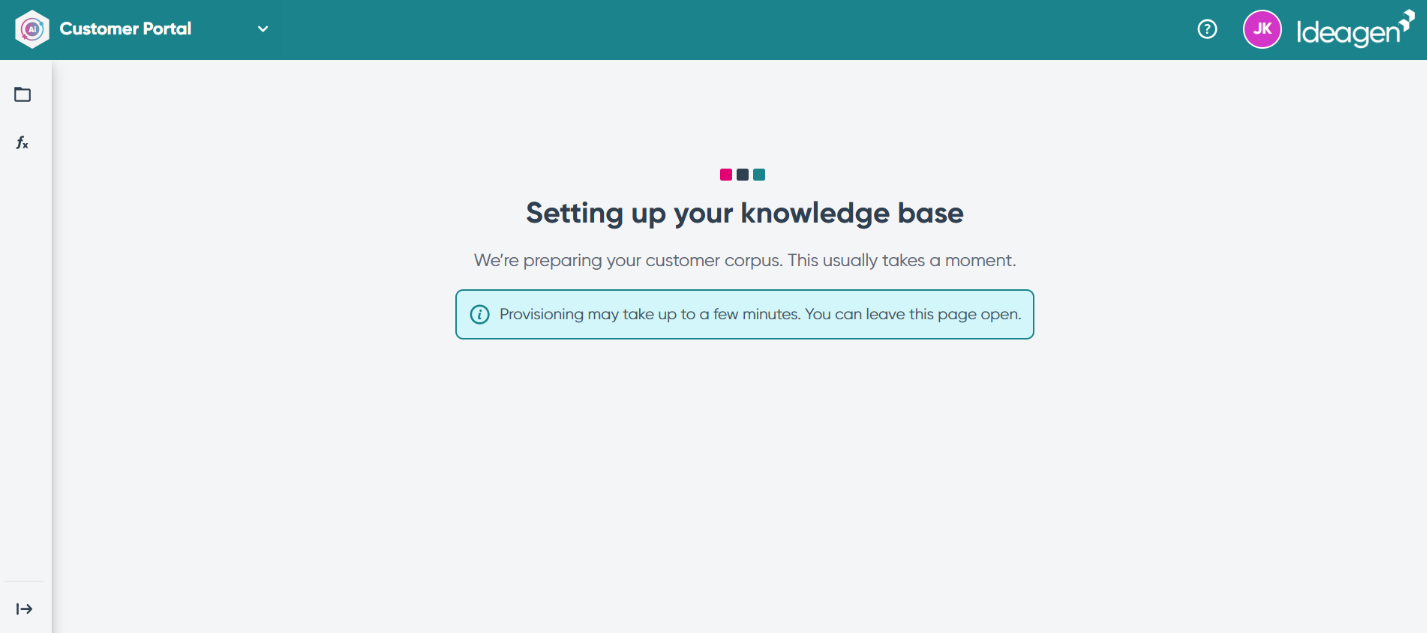
Note: If you are the first user to access the Customer Portal from your organisation, you will see a configuration screen on your first visit whilst your Customer Corpus is set up. On all subsequent visits, you will be taken directly to the file management page.
Uploading documents
To upload a new file to be used in your Mazlan agent's context:
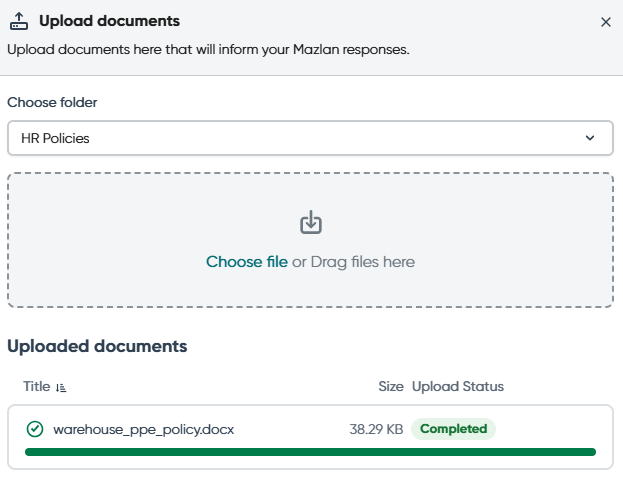
- Select Upload Documents.
- Choose the folder you wish to add your file to.
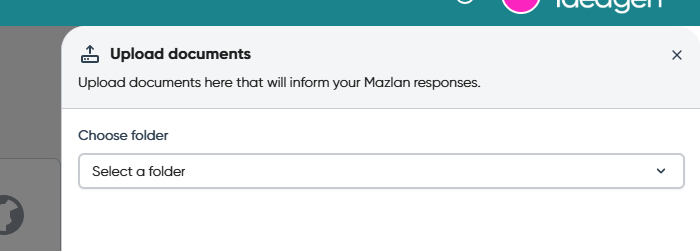
Once you select a document or documents to upload, they will appear in the upload panel with a status.
Creating a new folder
To create a new folder for your documents:
- Close the slide-out panel.
- Select New Folder.
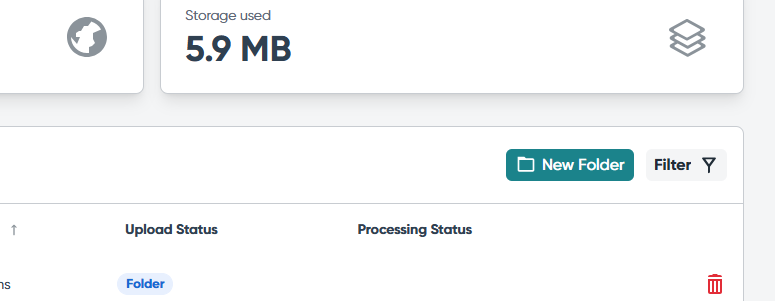
Once created, this new folder will be available when uploading a document.
Understanding document processing
After uploading, documents go through two stages before becoming available to your Mazlan agent:
- The upload status changes to Complete when the document has been successfully uploaded.
- The processing status appears in your file table.

Once the processing status is also complete, the file is available for your Mazlan agent to search and reference.
Managing existing documents
You can download and delete files using the action buttons in the file table.
