New article
Recently updated
Generating incident reports using the Mazlan Image Insight assistant

Who is this article for?
Mazlan Home users working with assistants.
Mazlan Home is required.
This article outlines how to generate incident reports using the Mazlan Image Insight assistant.
You will learn how to interact with the AI agent, attach images for analysis, and refine the output to create accurate incident reports.
Your results depend on your prompts. Mazlan's responses are shaped by the detail and clarity you provide. If results aren't quite right the first time, try adding more context or rephrasing your question. Every user's experience may vary and that's okay. You're in control of how you interact with Mazlan.
Generating an incident report with Image Insight
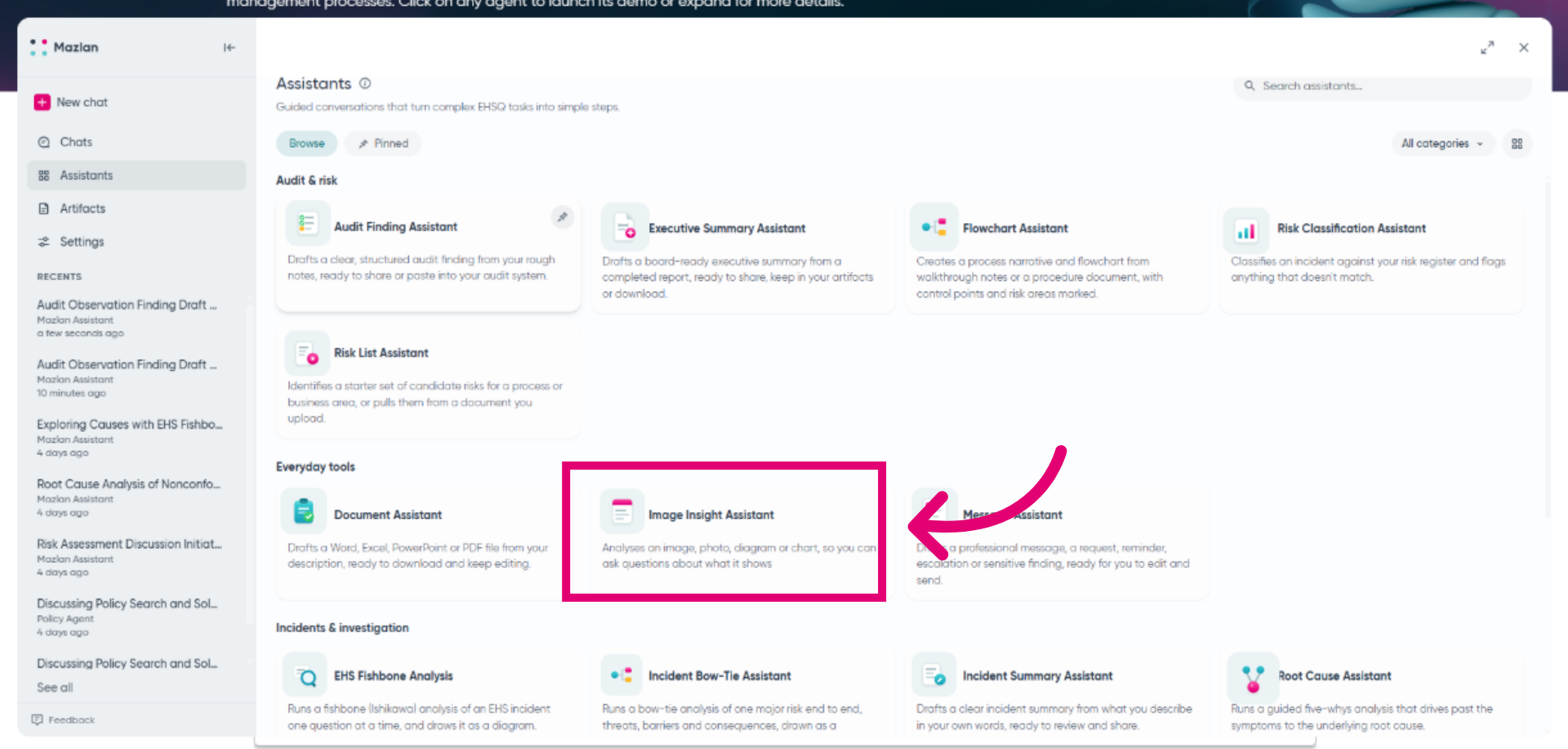
Launch the Image Insight assistant to get started.
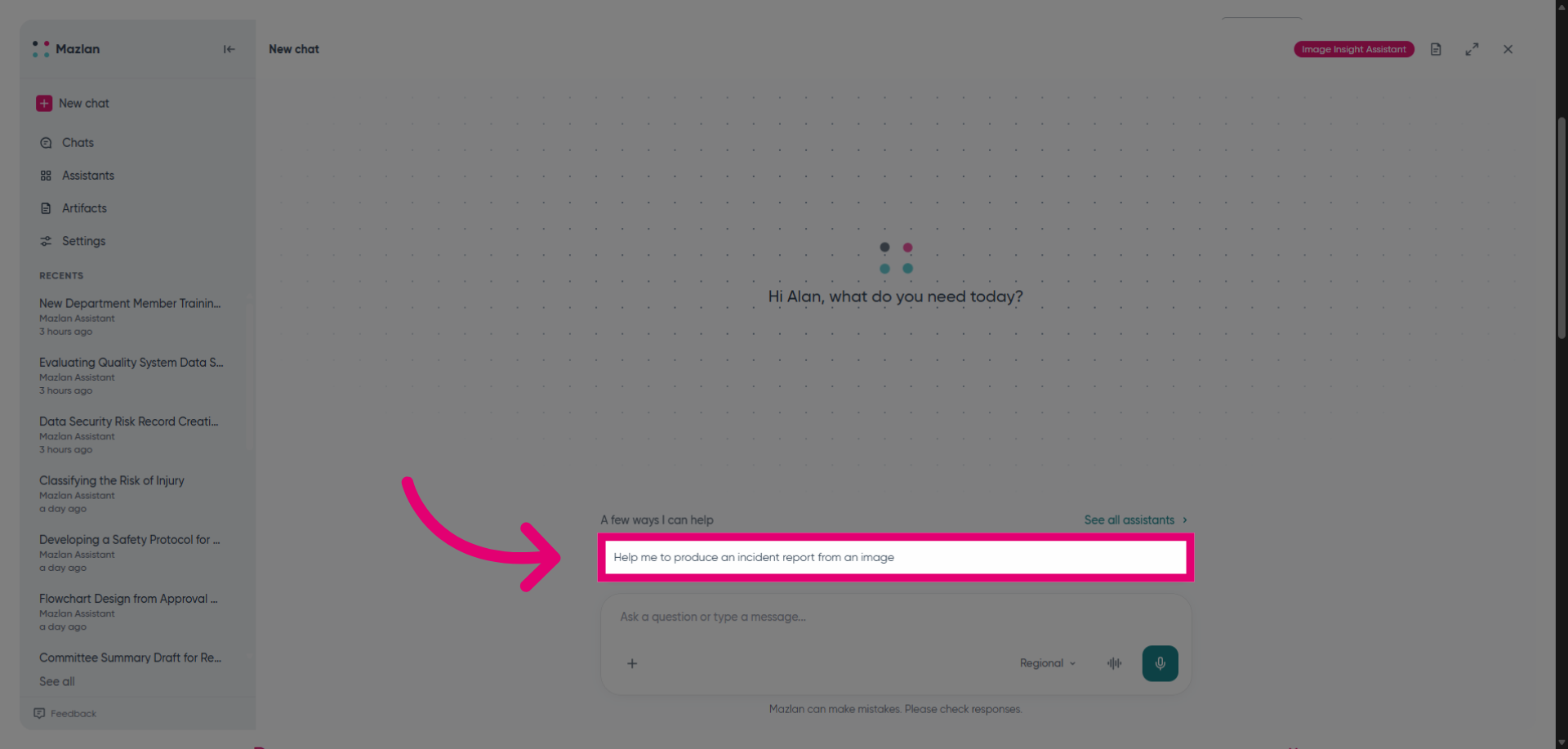
Select a suggested conversation or start one of your own. In this example, we'll explain a colleague slipped on the stairs.
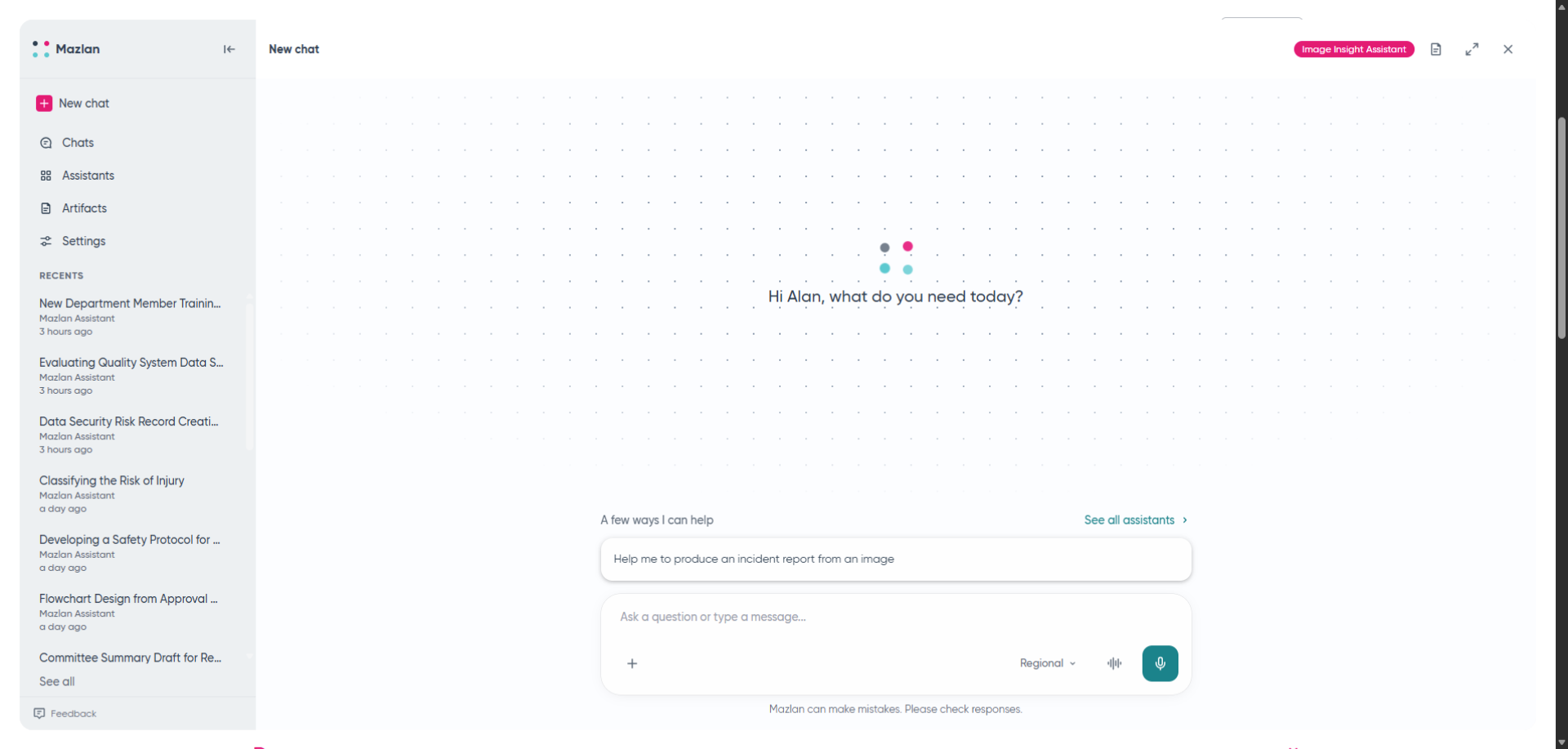
Start using a suggested conversation to request incident report assistance.
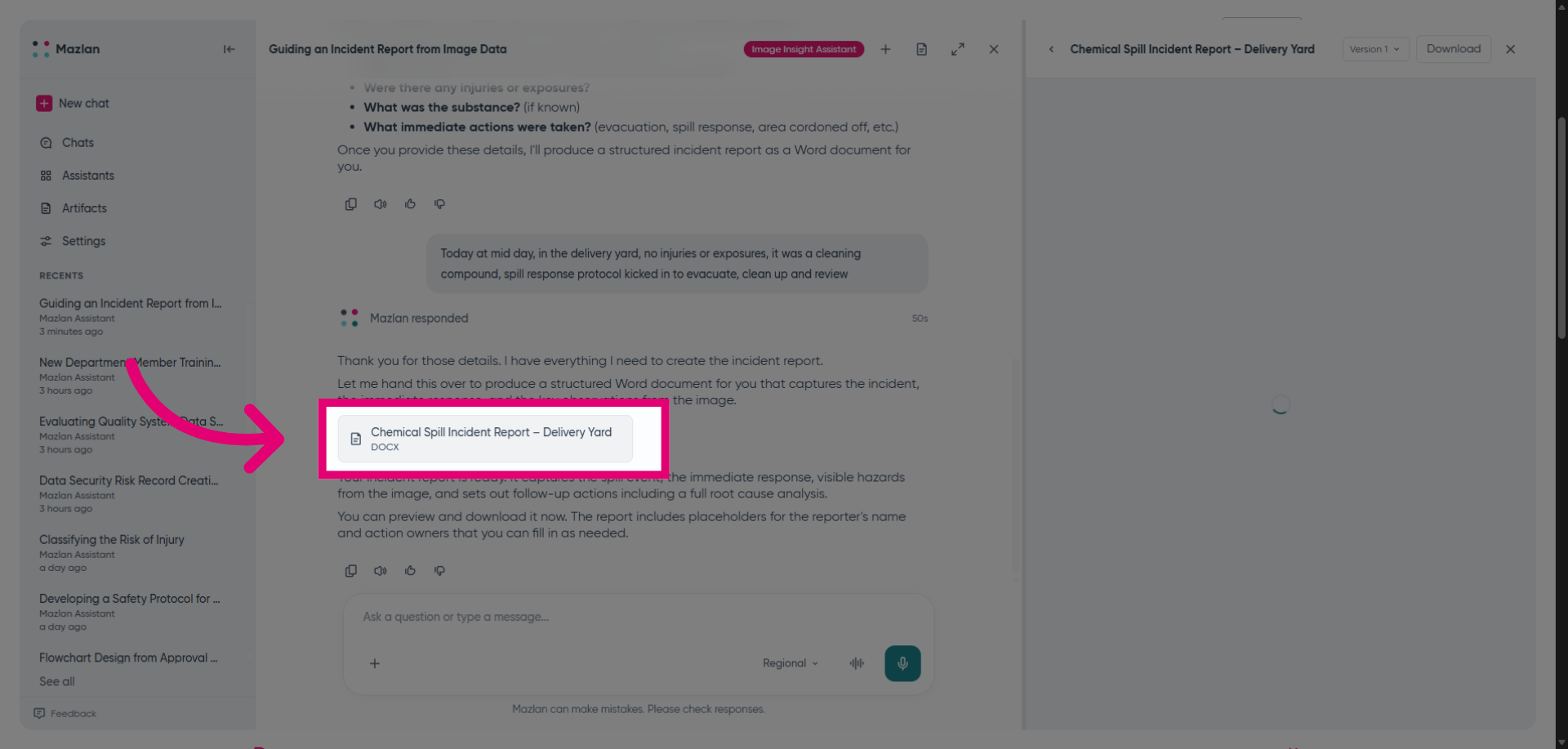
When prompted, attach an image and submit.
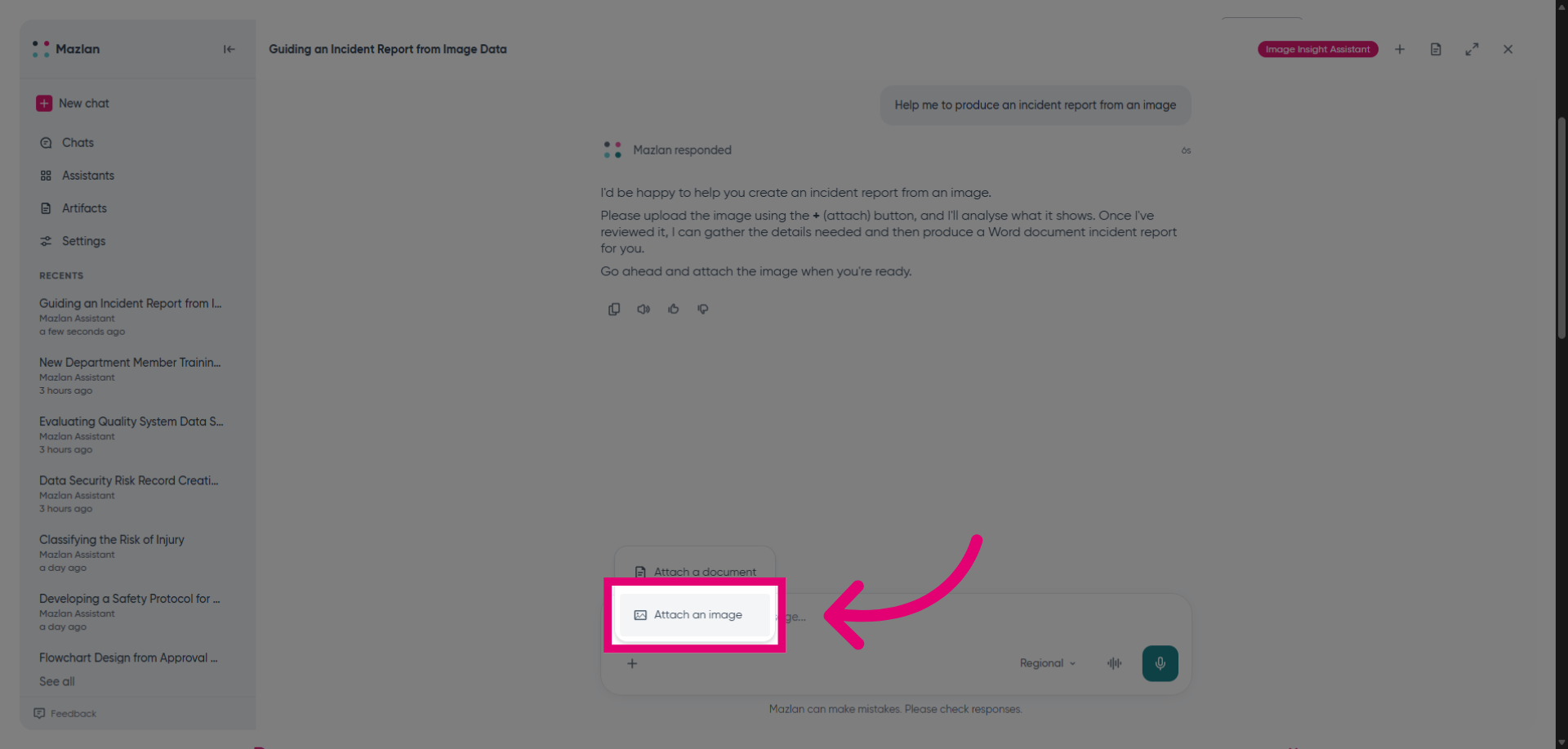
Review the Mazlan response and continue to share details until you are happy with the output. Remember, you're the expert and you should always review output from Mazlan to ensure quality and accuracy.
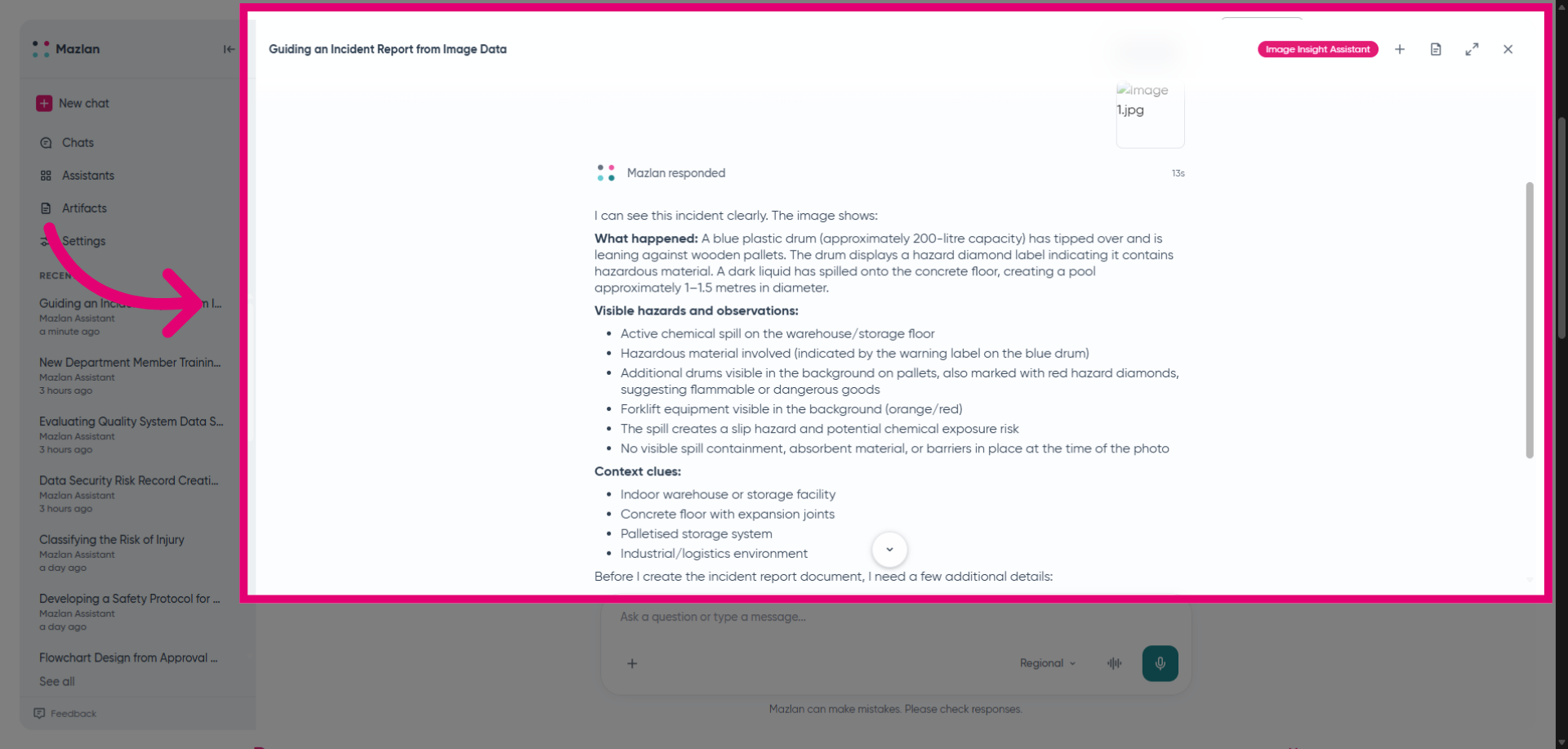
Provide any required information when Mazlan asks, such as details of the incident or a copy of the organisation's risk list. Remember, your results depend on your prompts. Mazlan's responses are shaped by the detail and clarity you provide. If results aren't quite right the first time, try adding more context or rephrasing your question. Every user's experience may vary—and that's okay. You're in control of how you interact with Mazlan.
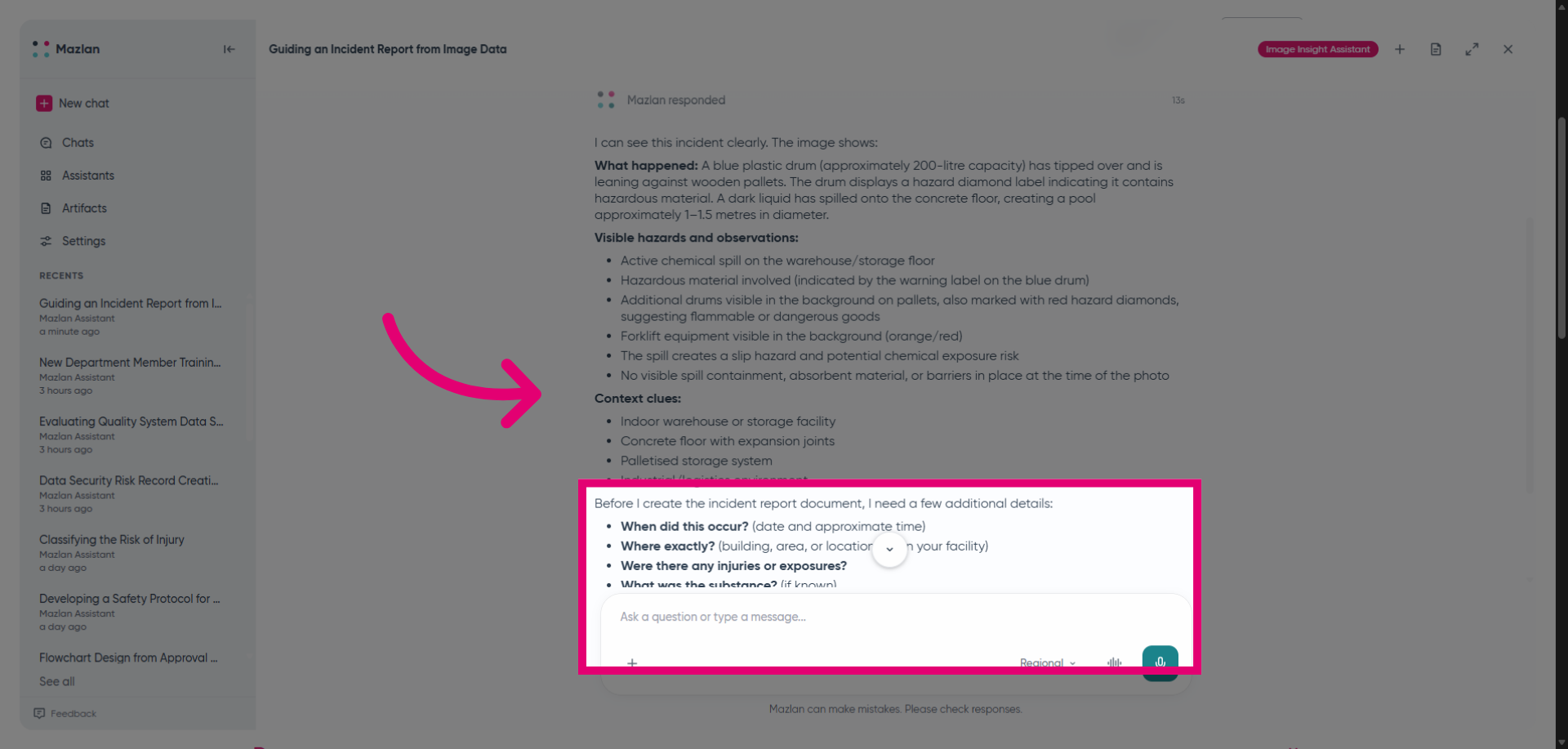
Continue to engage with Mazlan until you are happy with the output. You can then download the information to share or upload to your Ideagen solution.